|
Visual Editor Consultants |
|
Training by Visual Editor Consultants |
Small Class Size, A Computer for Every Student, Taught by MCNP Experts, Excellent Training Materials for Future Reference
|
Introduction to MCNP Using the MCNP/MCNPX Visual Editor |
Topics Covered
Classes are typically held from 8:00 AM to 4:00 PM with an hour for lunch. Below
is a detailed description of the class.
To download the overheads for the class, Click Here (Updated March 2006).
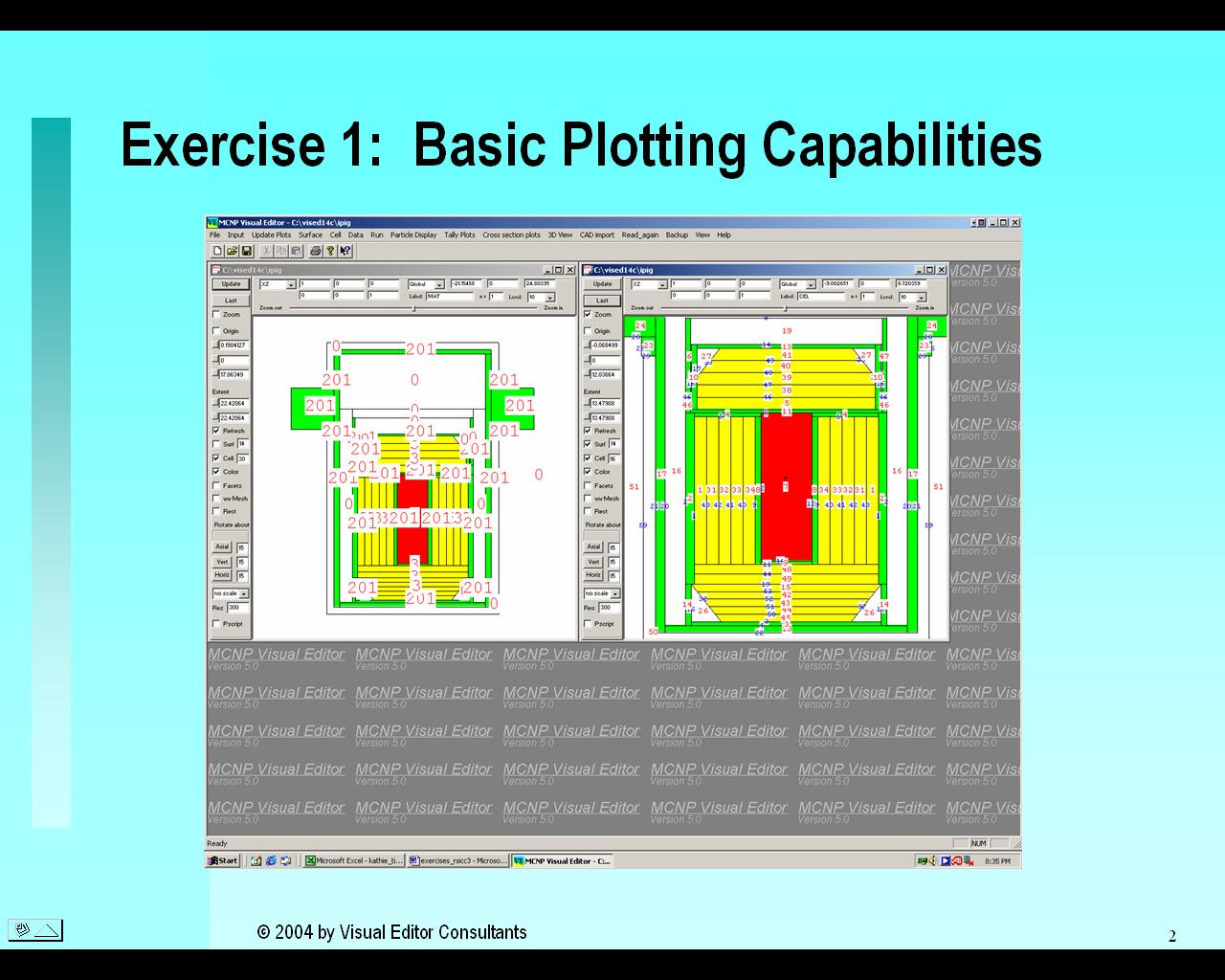
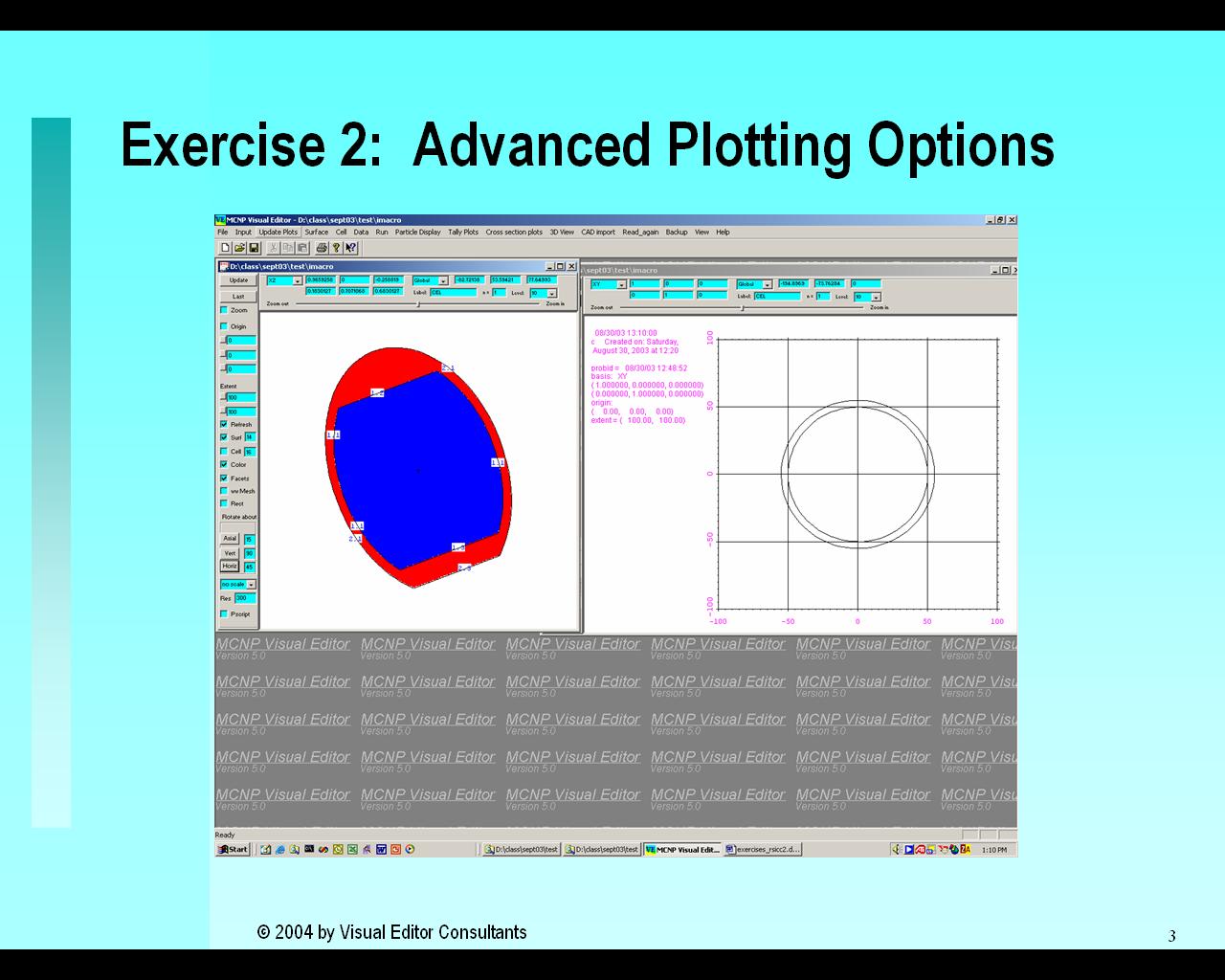
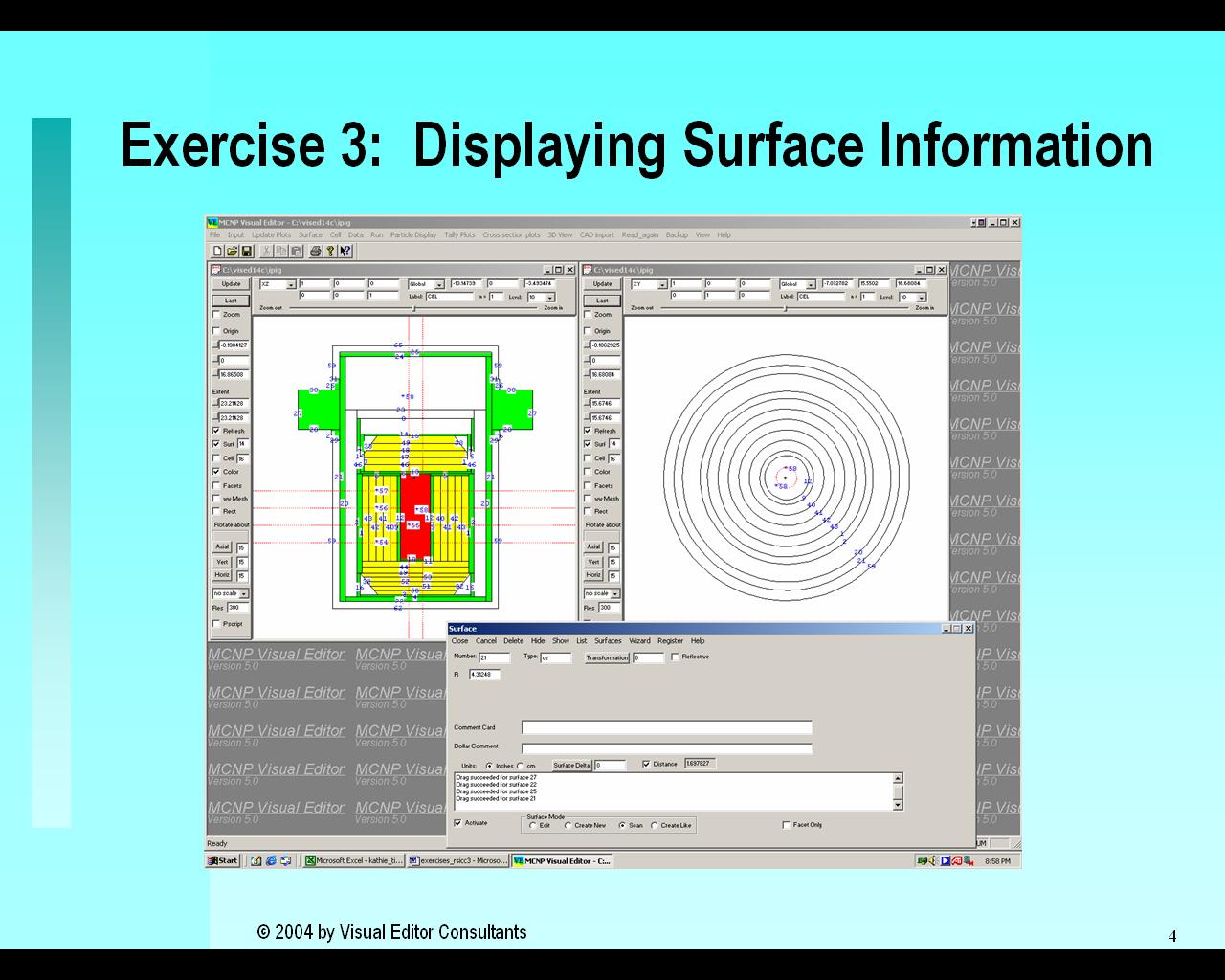
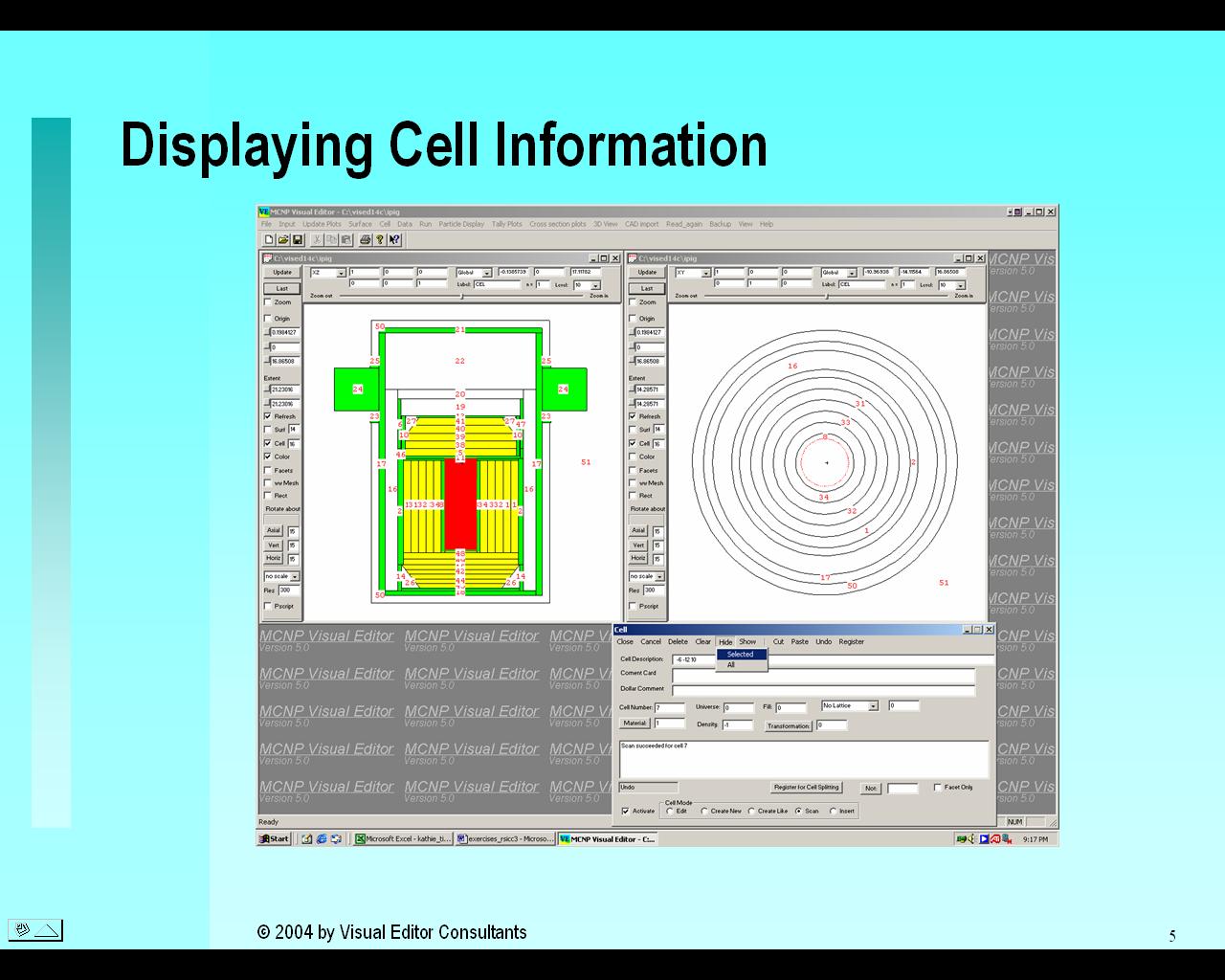
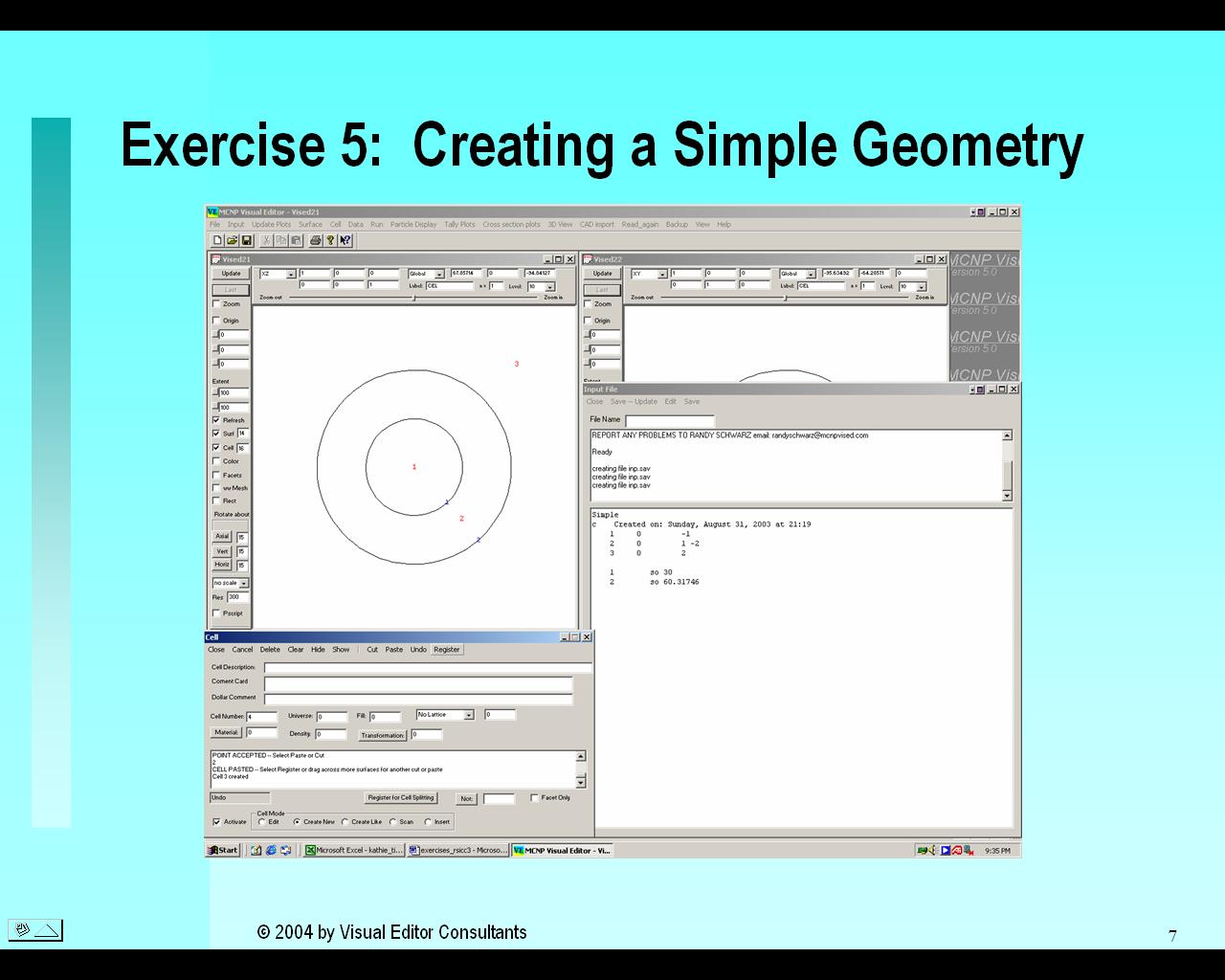
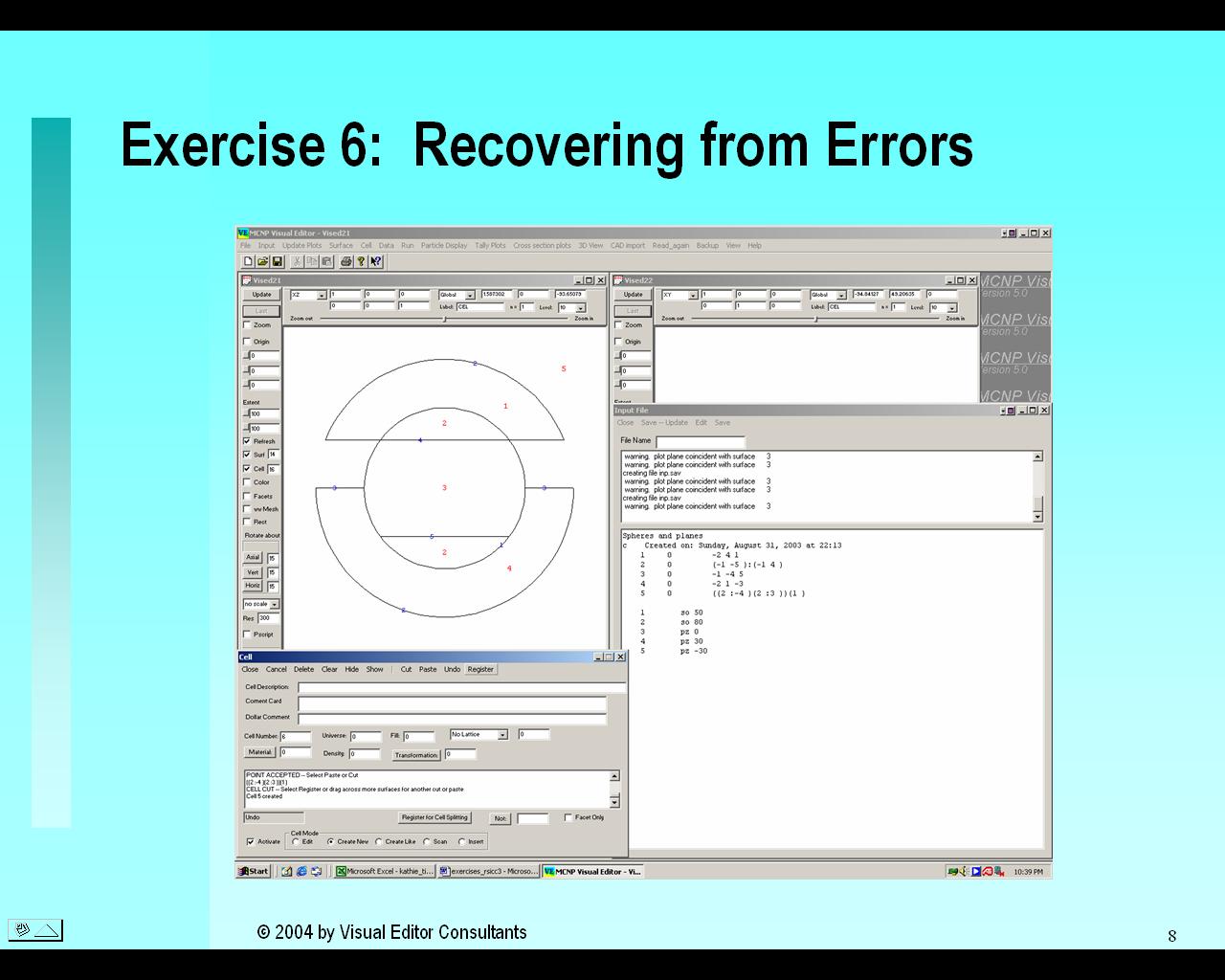
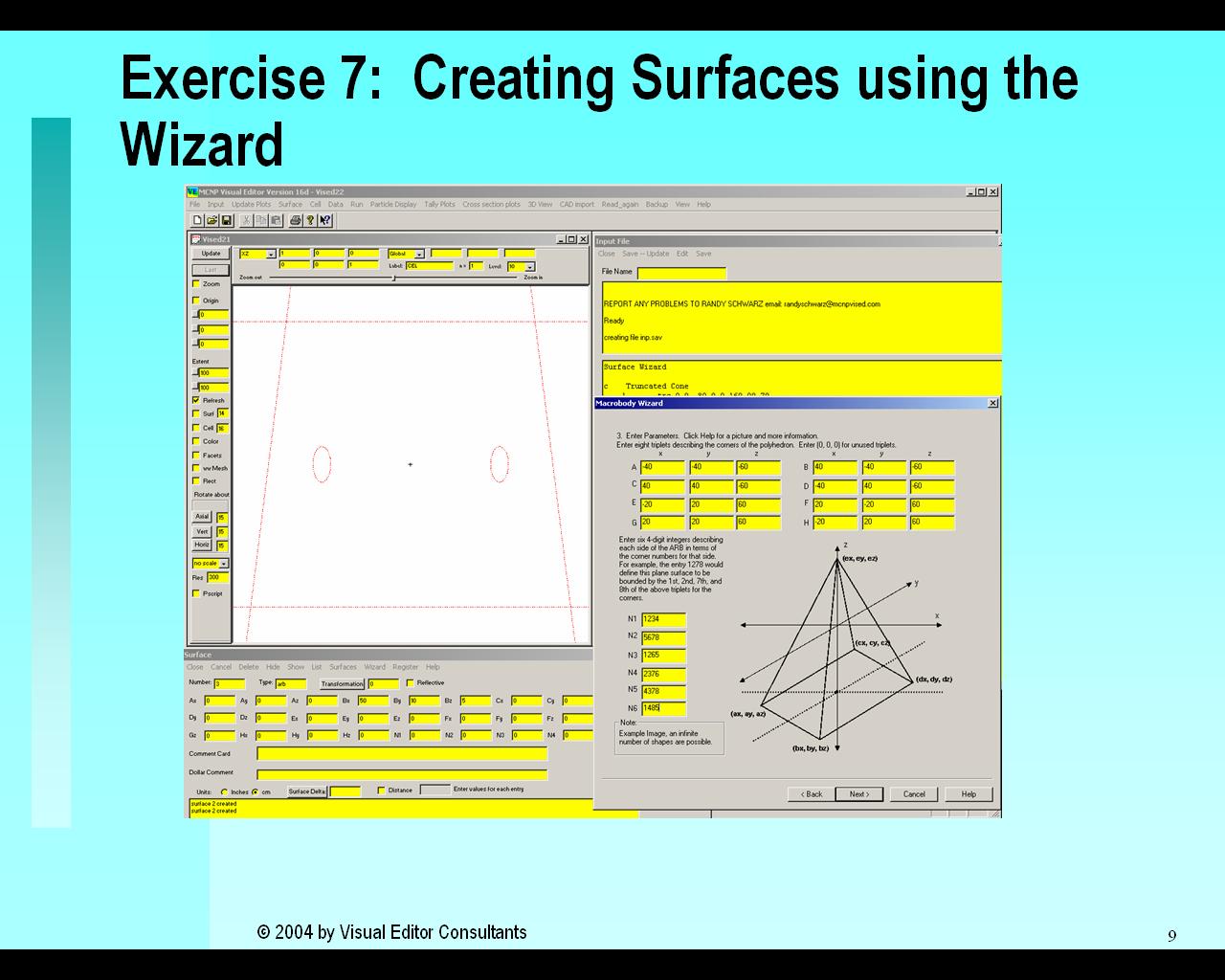
The first day introduces the user to MCNP and the Visual Editor. Students learn how to display some existing input files and to begin creating their own input files. Students are shown how to create MCNP surfaces and then combining those surfaces to form MCNP cells. This can be done with a text editor (such as Notepad) but it can also be done more efficiently by using the Visual Editor to create them by dragging the mouse or filling in the desired size and position in the Visual Editor screens. Users also learn how to recover from errors (and to fix them). Students also create complex macrobodies using the Visual Editor's surface wizard.
MCNP Topics Covered in Day 1:
|
|
Introduction to MCNP |
| Simple Geometries in MCNP | |
Visual Editor Topics Covered in Day 1:
|
|
|
|
|
| Basic Plotting | Advanced Plotting | Displaying Surfaces | Displaying Cells |
|
|
|
|
|
| Creating a Simple Geometry | Error Recovery | The Surface Wizard | Using Skills Learned in Day 1 |
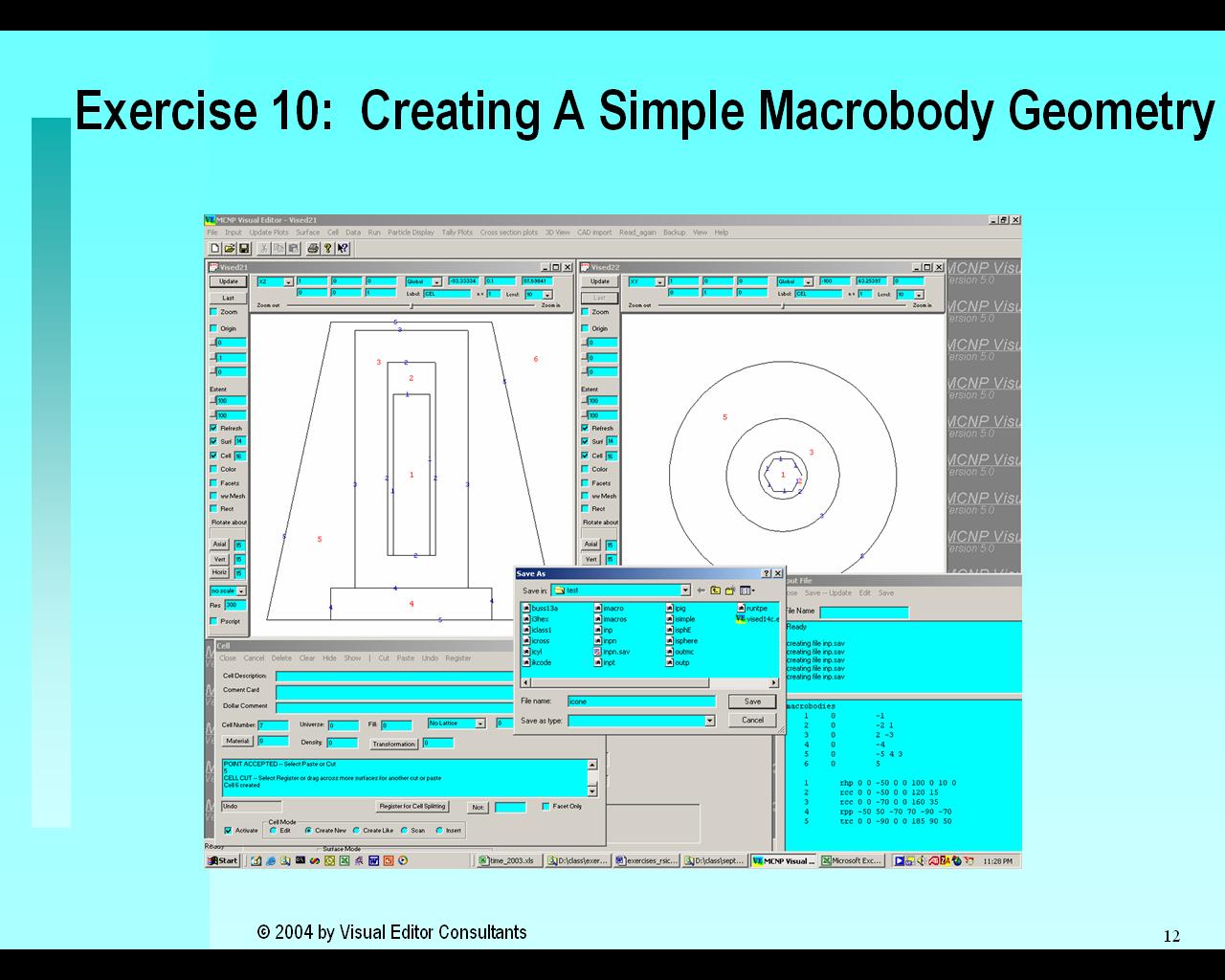
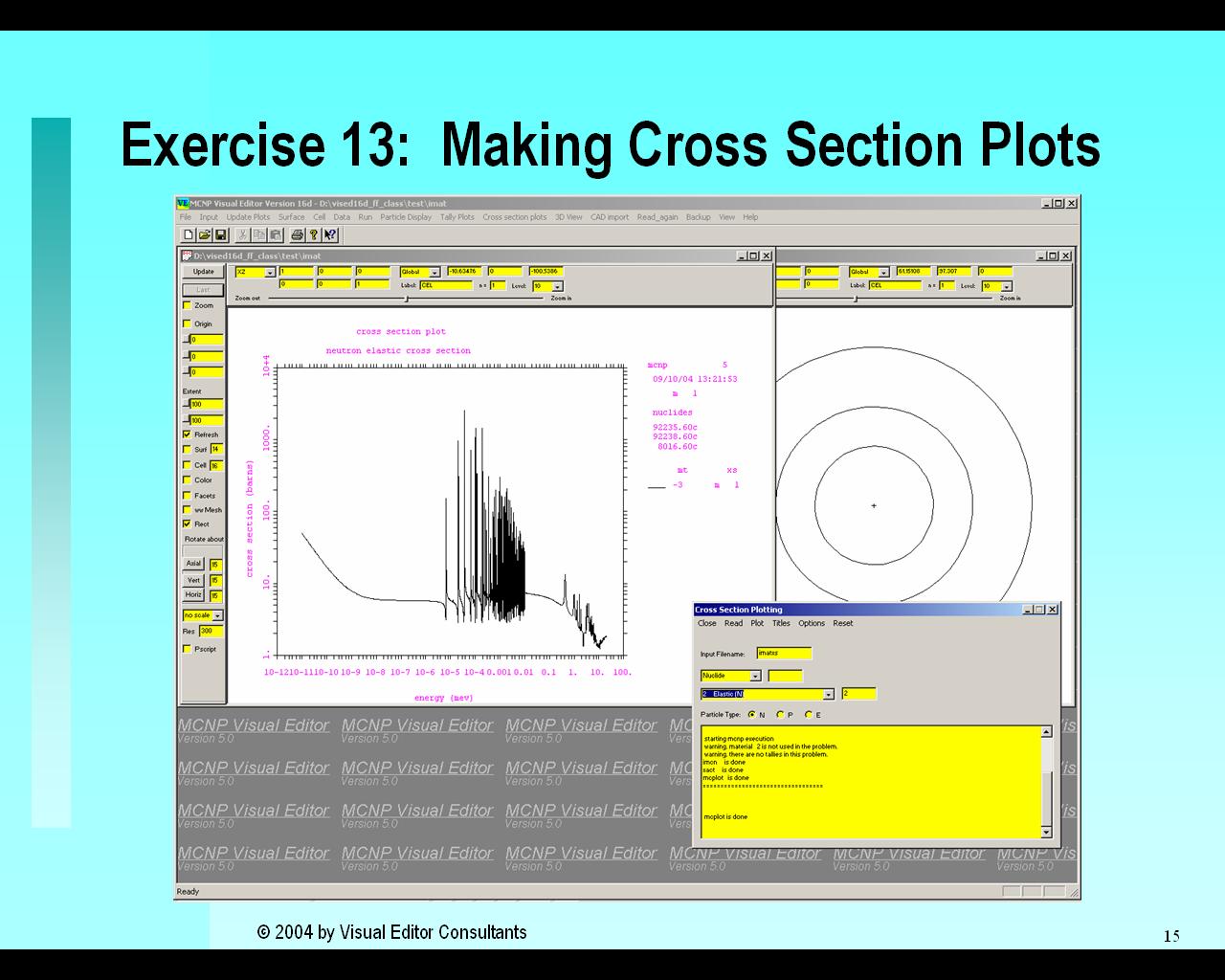
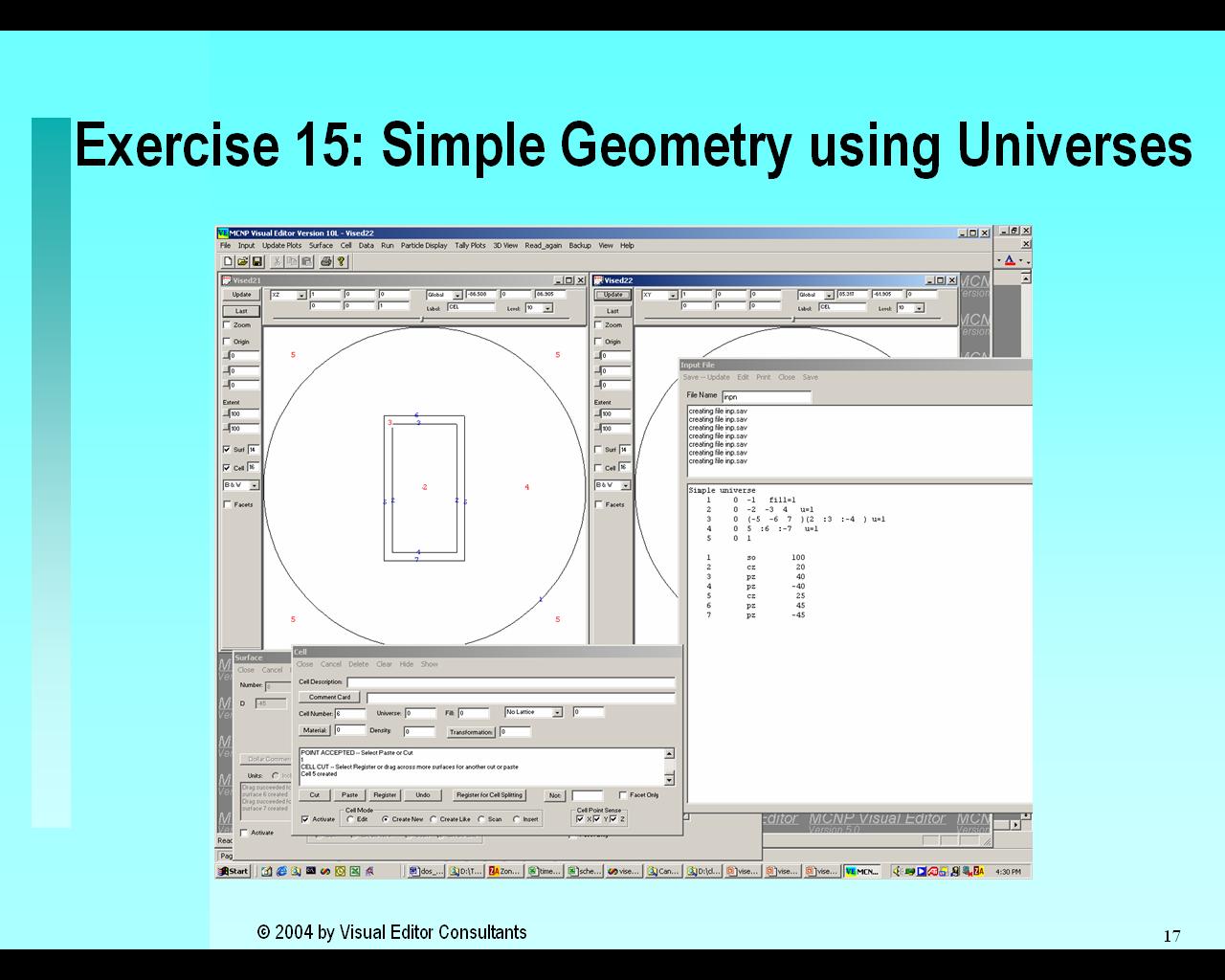
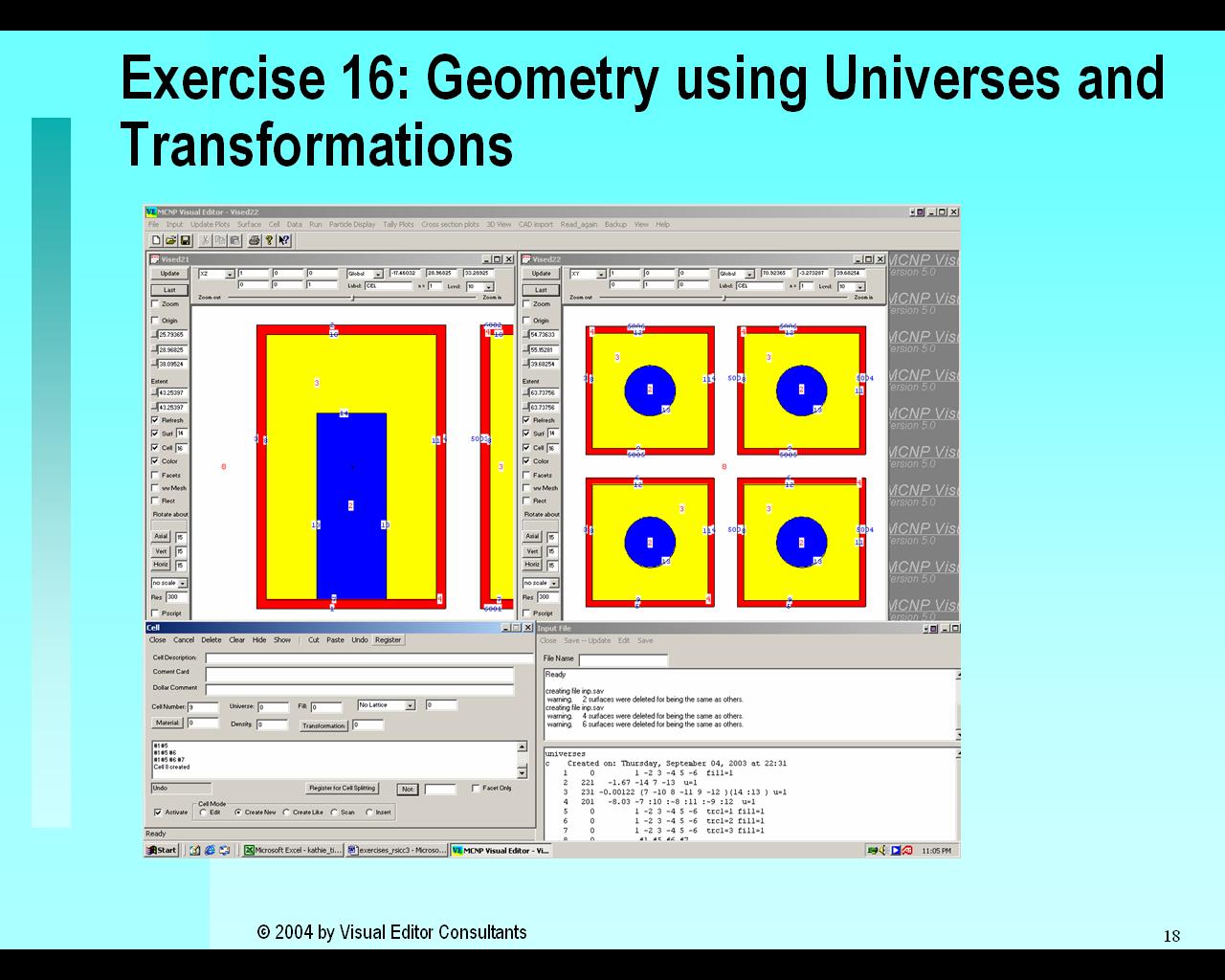
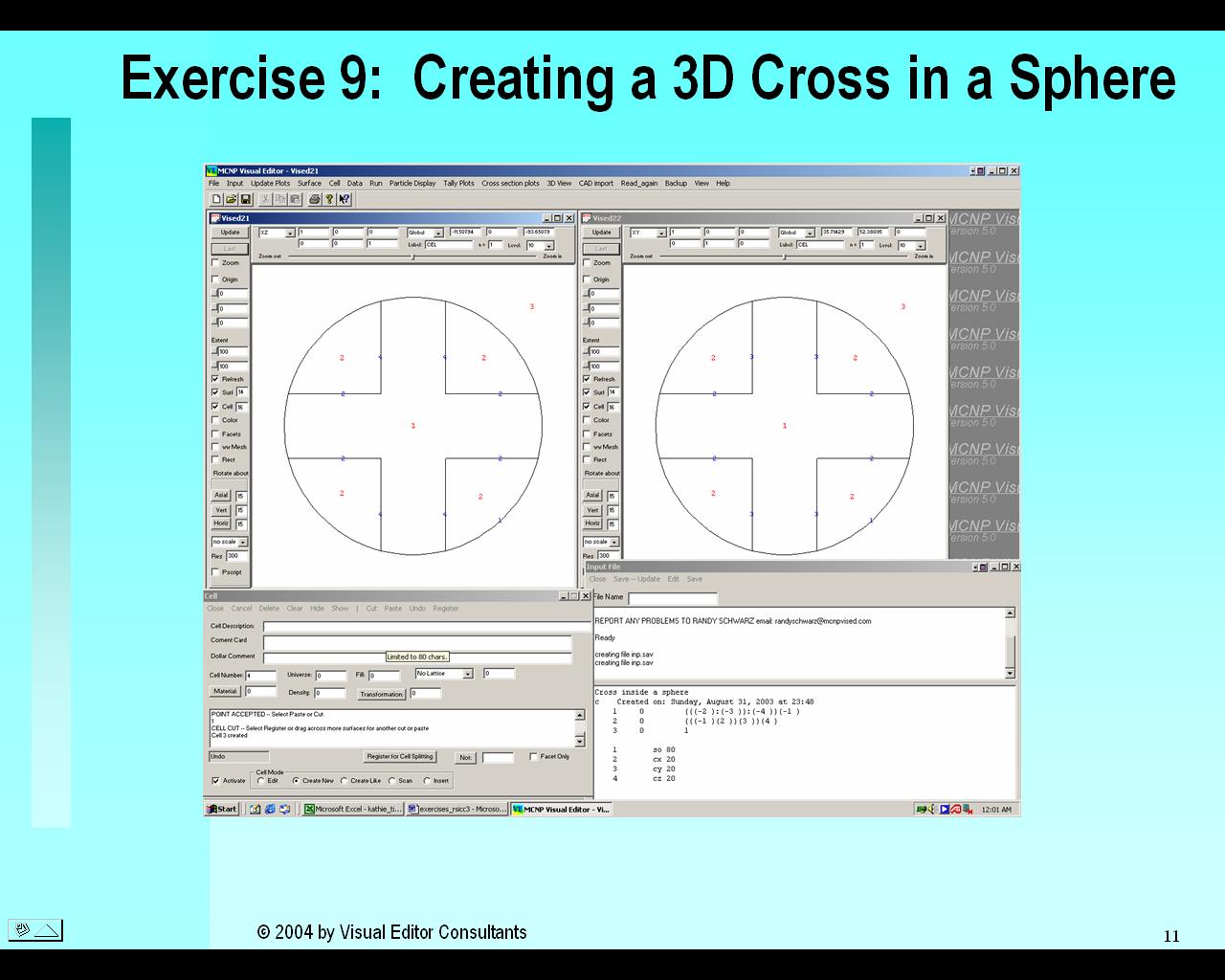
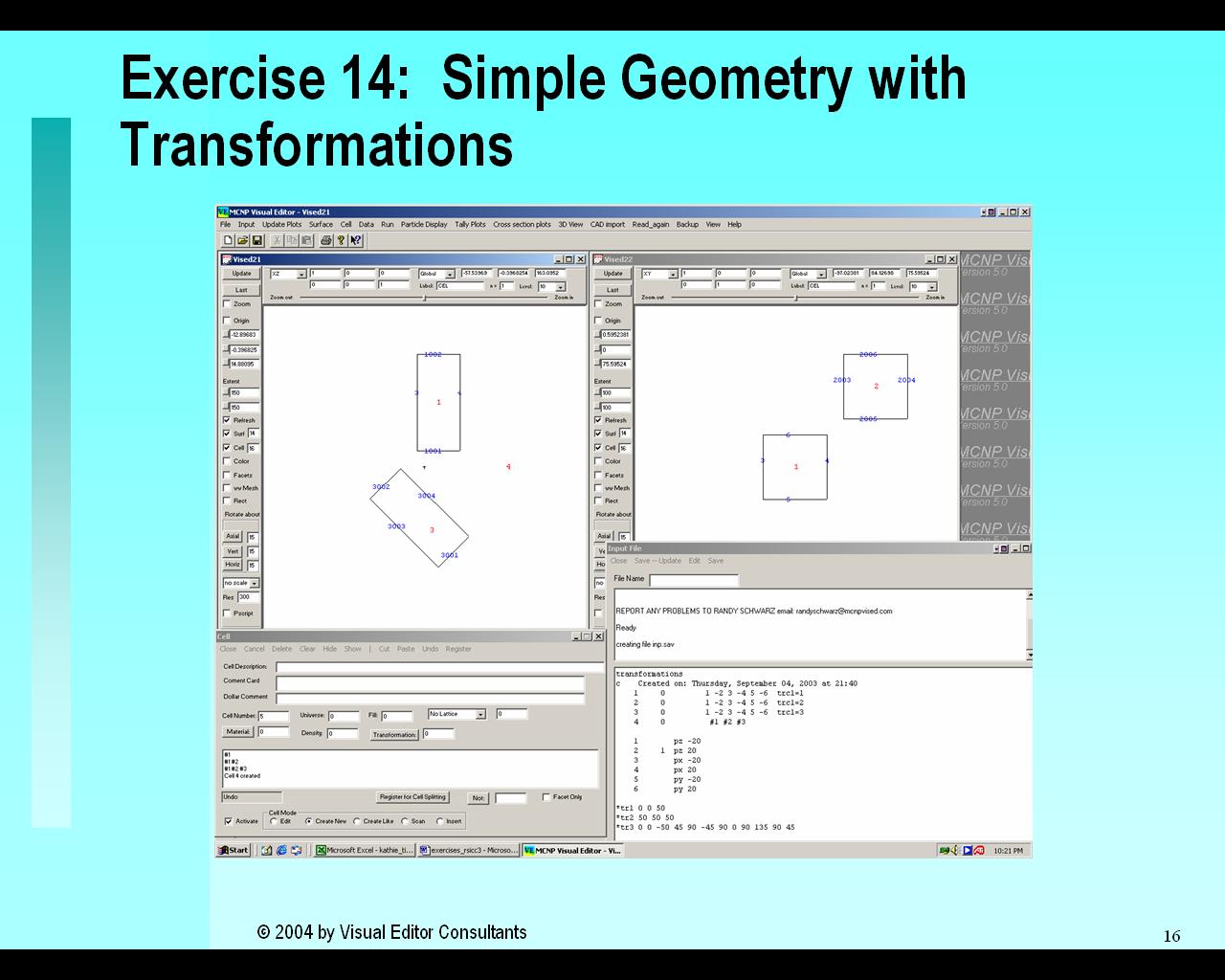
The second day adds more advanced geometries with materials, transformations, and universes. Students create a cross within a sphere which involves more complex adding and subtracting of surfaces to create the cells. MCNP's powerful macrobody feature (you can create a cube by specifying a Macrobody "box" rather than defining six different surfaces) is explained in exercise 10 and students have the opportunity to create a working MCNP geometry with macrobody surfaces. MCNP materials are explained. In addition to teaching users how to add them to an MCNP input file, the class explains how to display materials libraries in the Visual Editor which enables users to simply click on the material they want and assign it to a cell. Once a material is assigned to a cell, the Visual Editor displays the cell in color (see pictures below). Cross section plotting is explained in exercise 13. For users with repetitive geometries, the MCNP transformations allow users to copy and paste parts of their geometry to place identical components in different locations much like you would in any drawing package. An additional unit on optimizing your MCNP input files. This will enable you to create more efficient geometries that run much faster.
MCNP Topics Covered in Day 2:
|
|
Macrobody Cells |
| MCNP Cross sections and materials | |
| MCNP transformations and universes | |
| Optimization |
Visual Editor Topics Covered in Day 2:
|
|
|
|
|
| A more advanced Geometry | Using Macrobodies | Accessing Materials | Using Materials |
|
|
|
|
|
| Cross Section Plots | Transformations | Universes | Using Skills Learned in Day 2 |
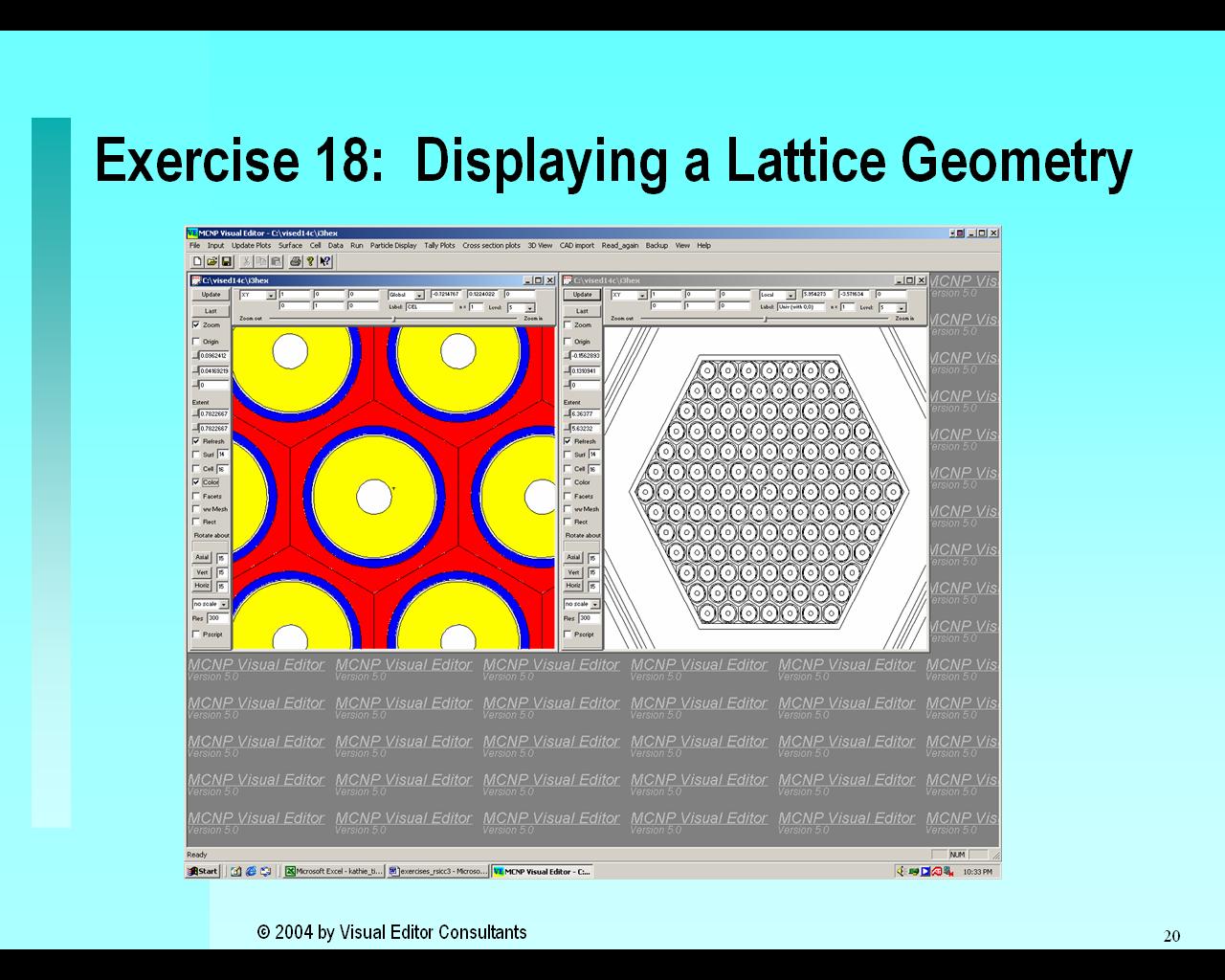
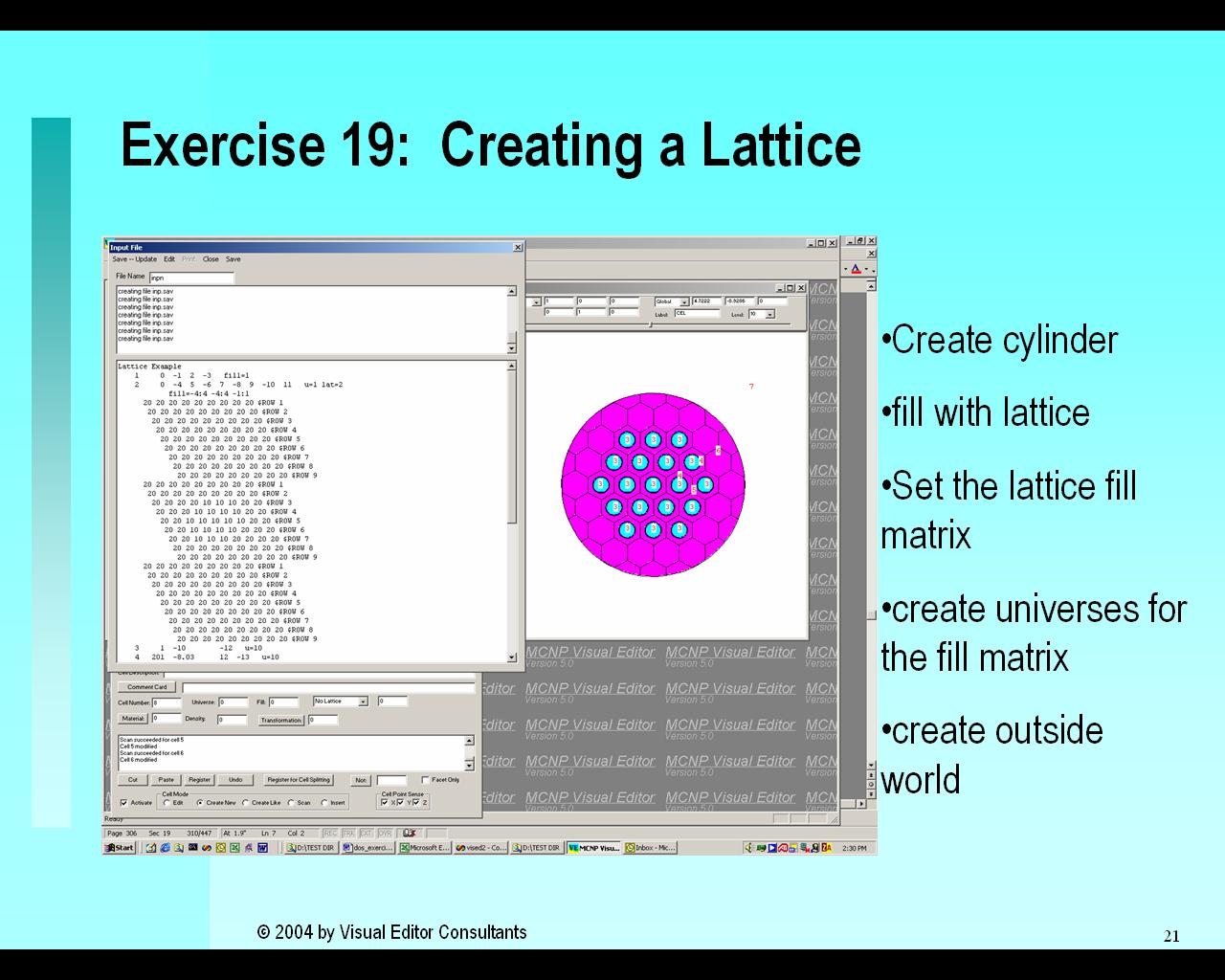
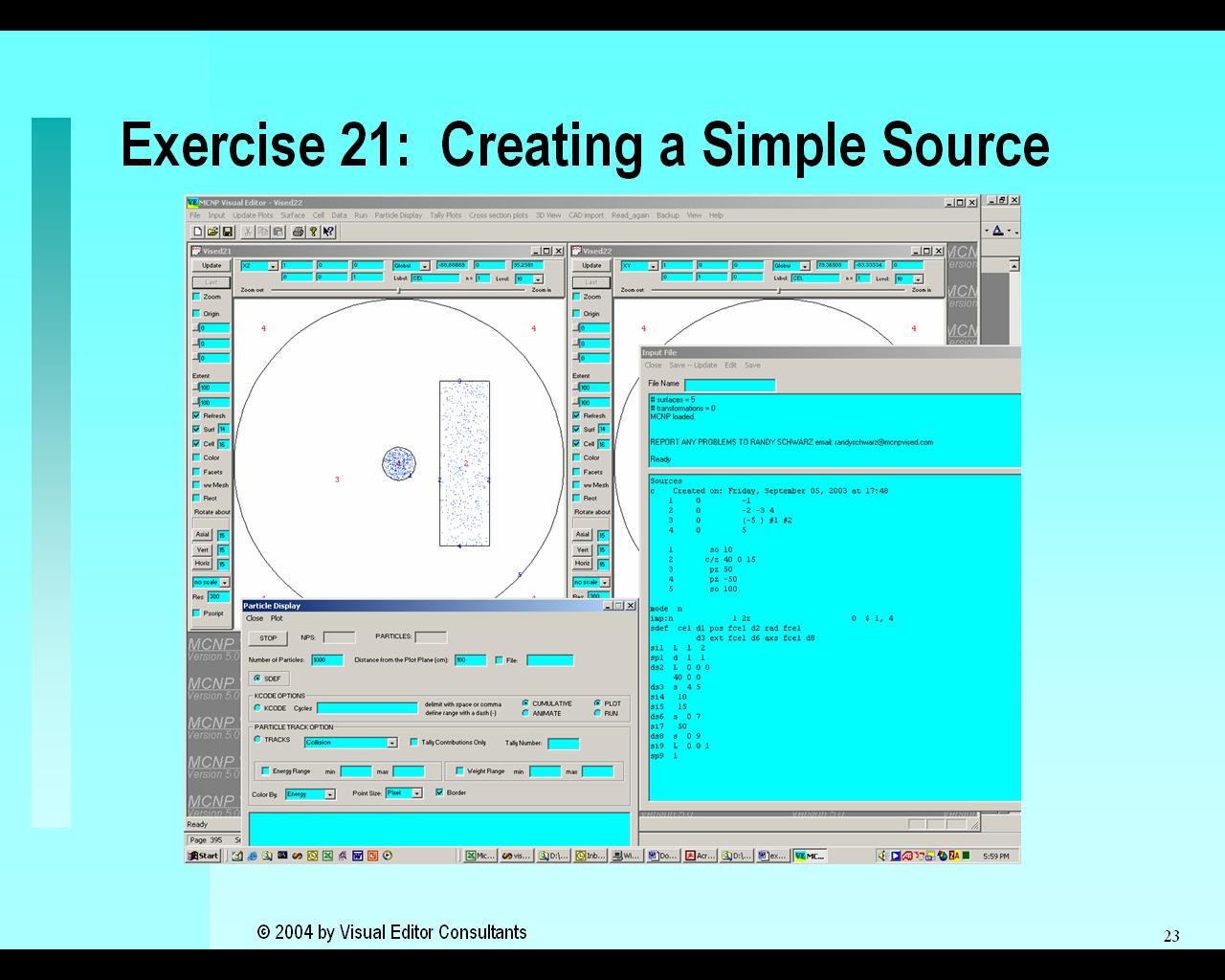
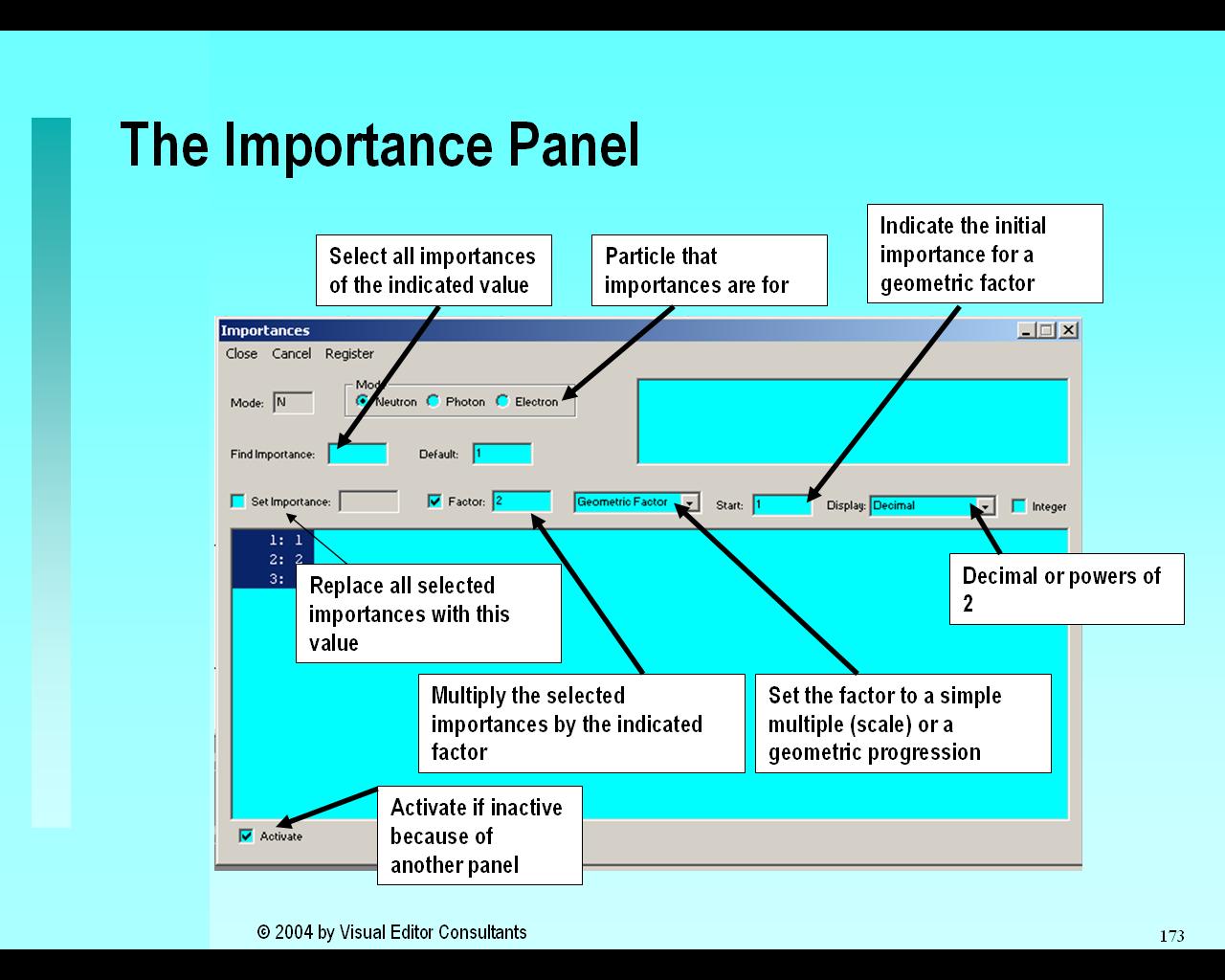
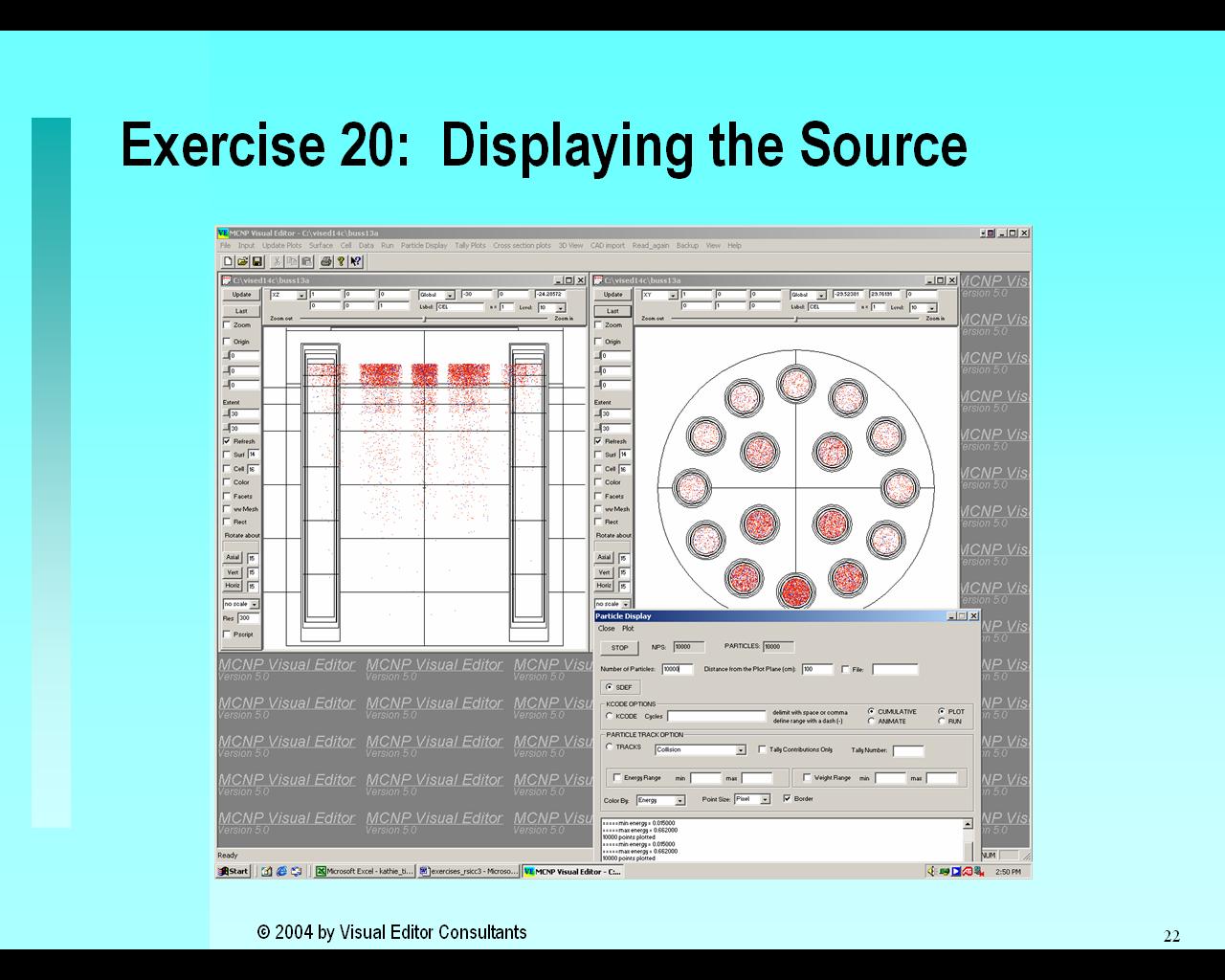
The third day teaches importances, cell splitting, lattices, sources and an overview of the MCNP output file. Students gain experience in the display of lattices and become familiar with the many options that control the viewpoint, complexity (amount of detail displayed), and the zoom. Students then create a simple lattice. The many options to display a source are covered and students have hands-on opportunities to try different features. The section on creating sources not only teaches how they are created but provides guidance (based on Randy's twenty years creating MCNP geometries) on how to create them so the problems run most efficiently. An overview is provided on the MCNP output file teaching students what to look for and how to understand the information presented.
MCNP Topics Covered in Day 3:
|
|
Lattice Geometry Options |
| Data Cards | |
| Source |
Visual Editor Topics Covered in Day 3:
![]() |
|
|
|
| Importances | Cell Splitting | Displaying Lattices | Creating Lattices |
|
|
|
||
| Displaying a Source | Creating a Source |
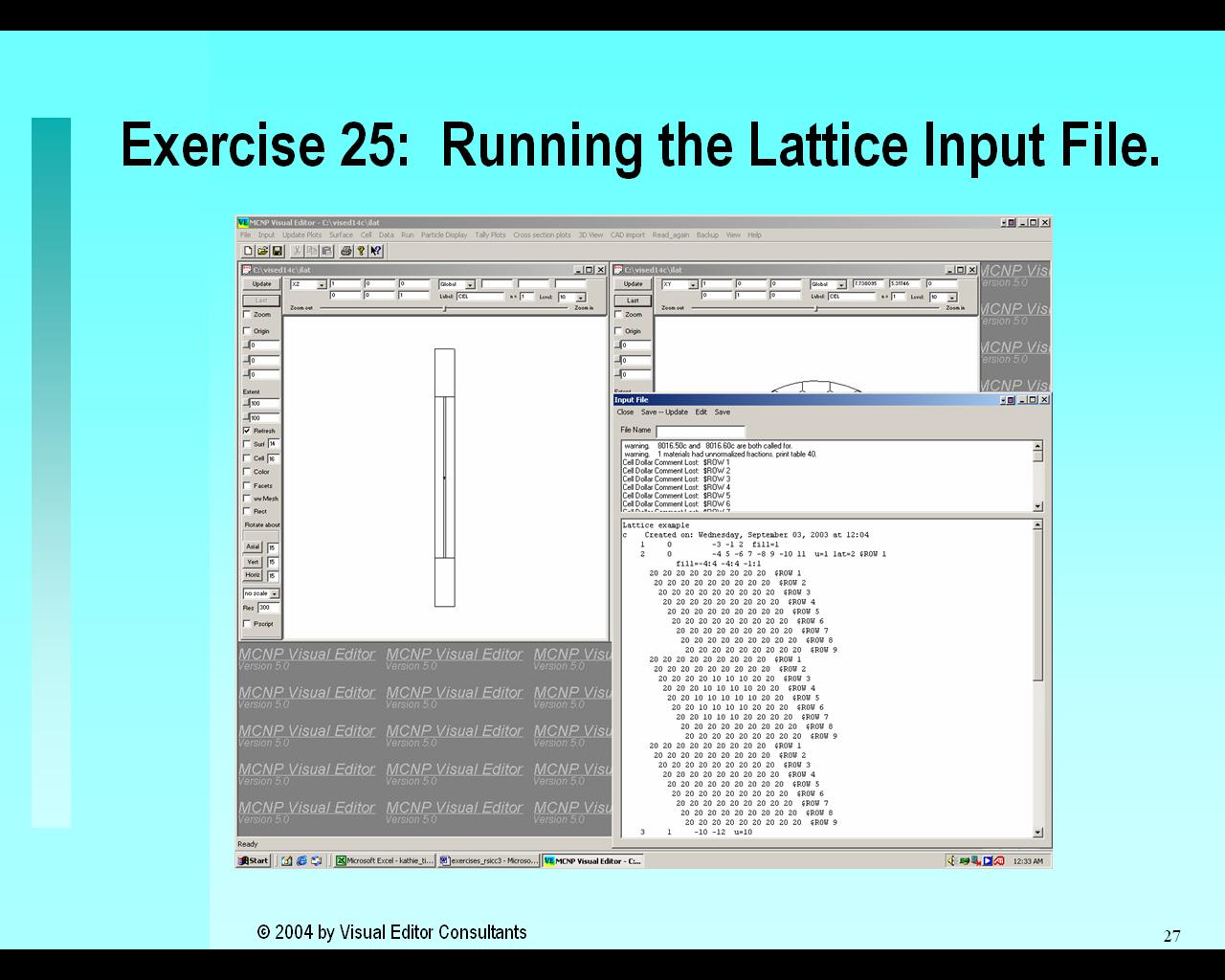
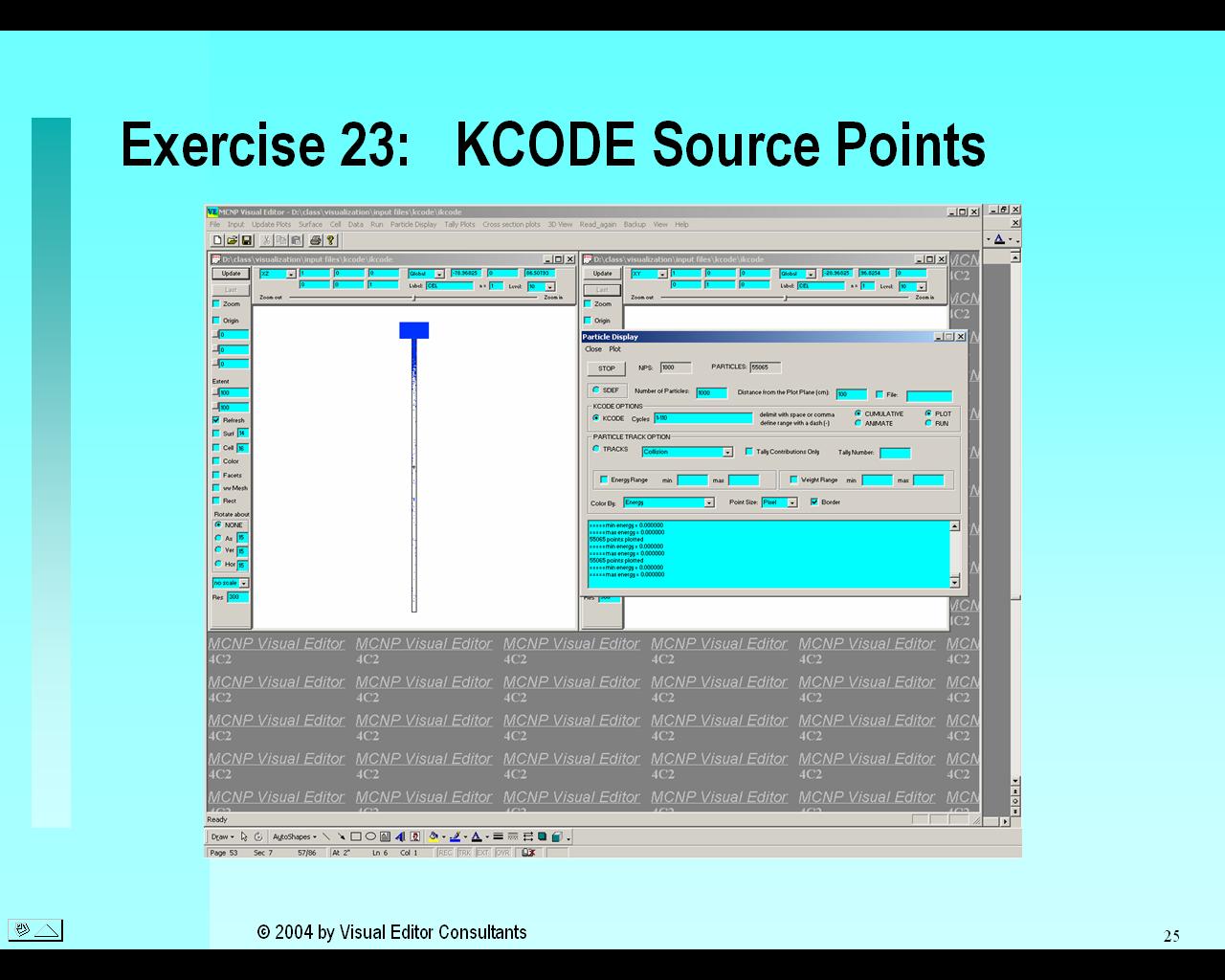
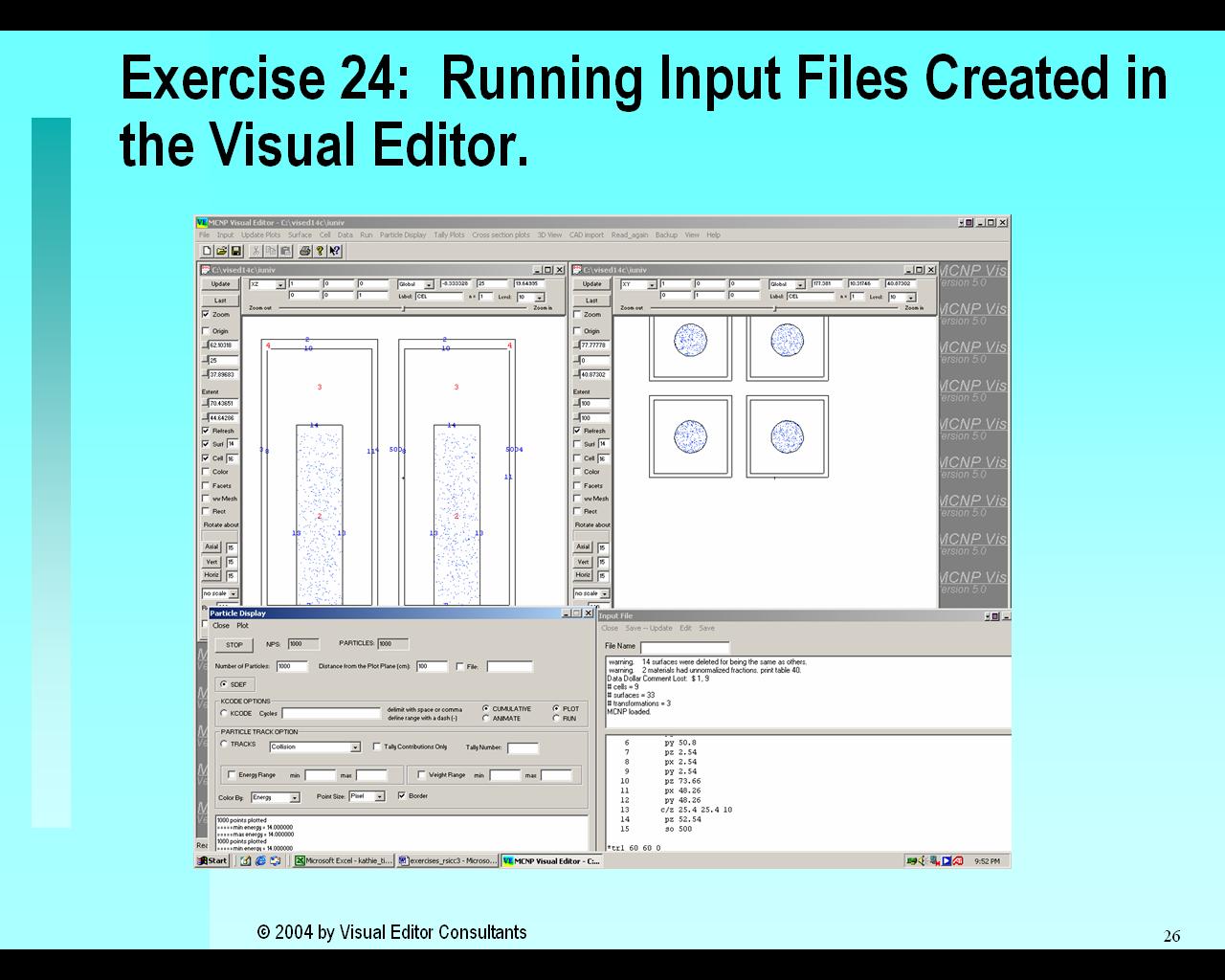
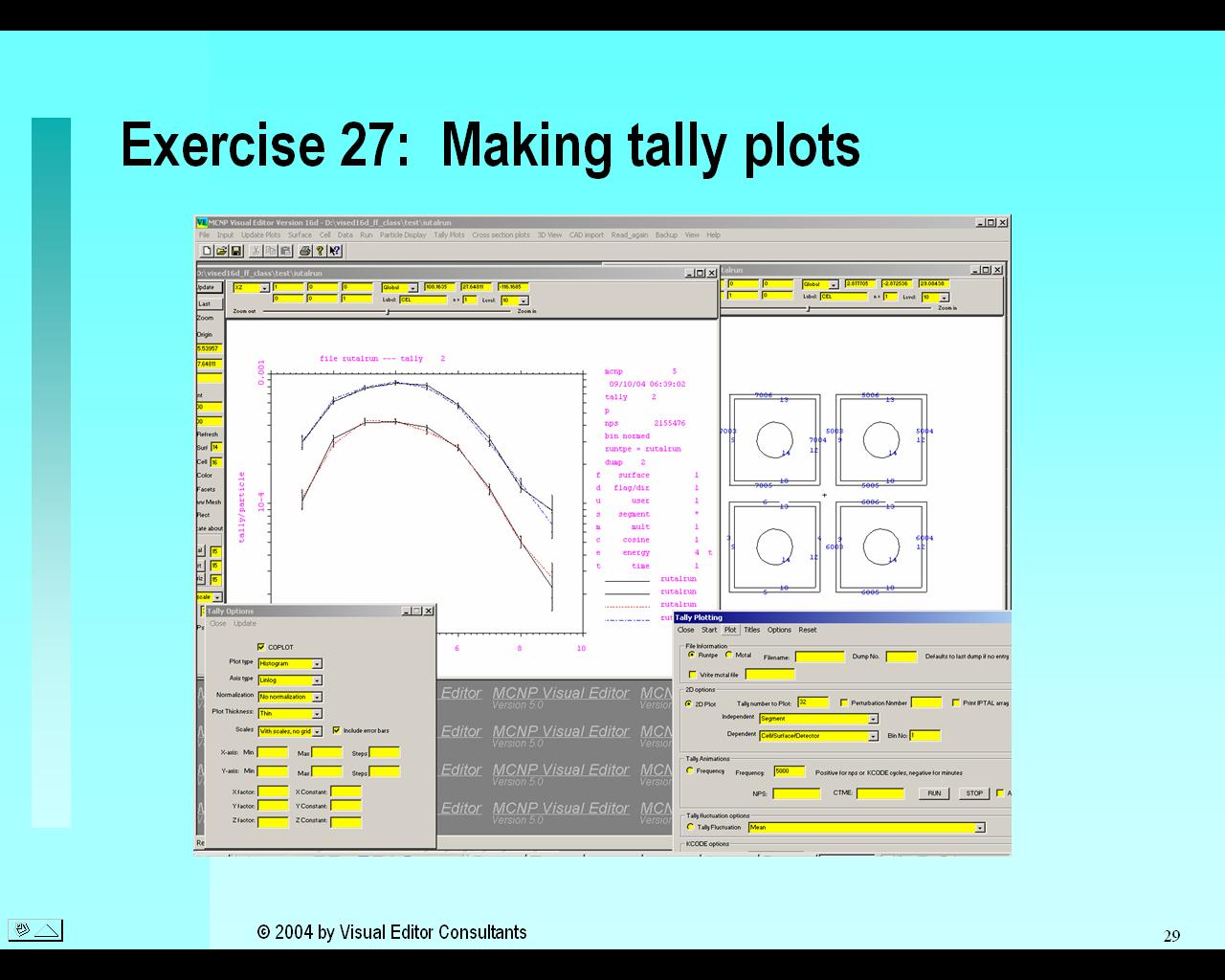
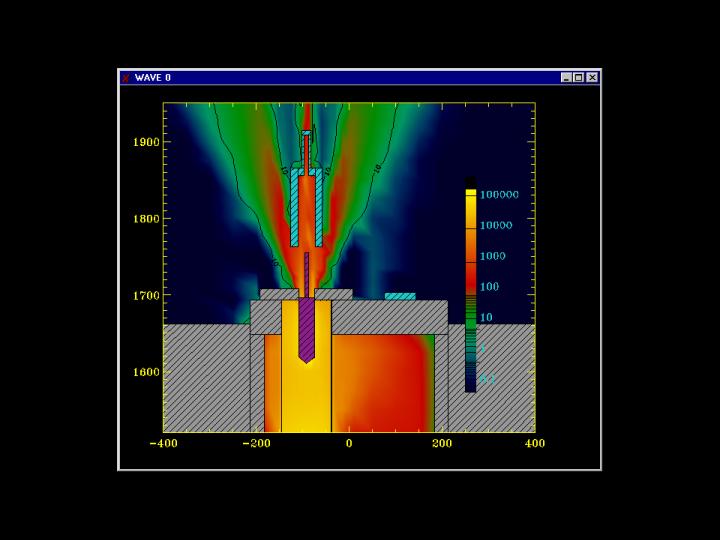
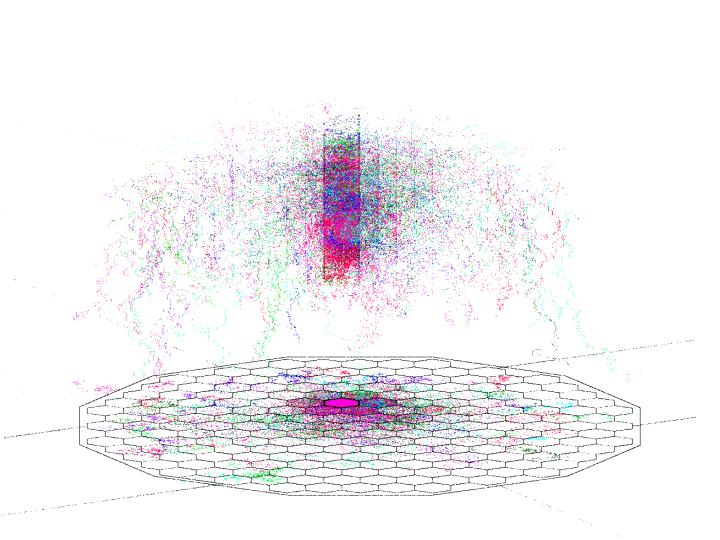
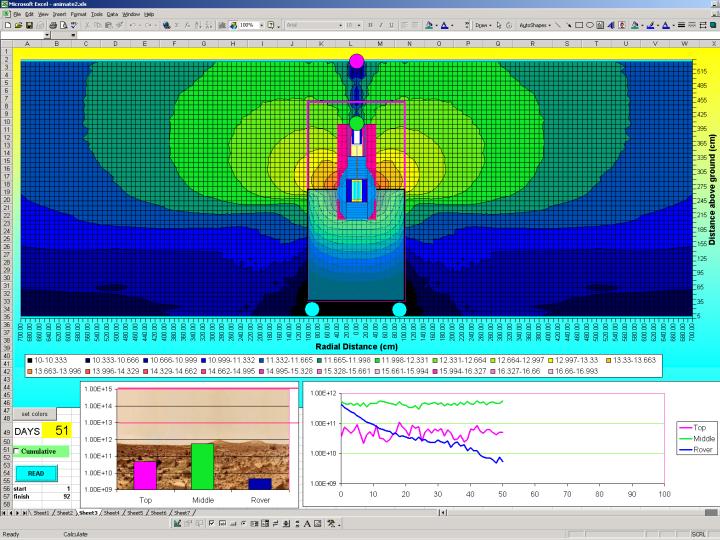
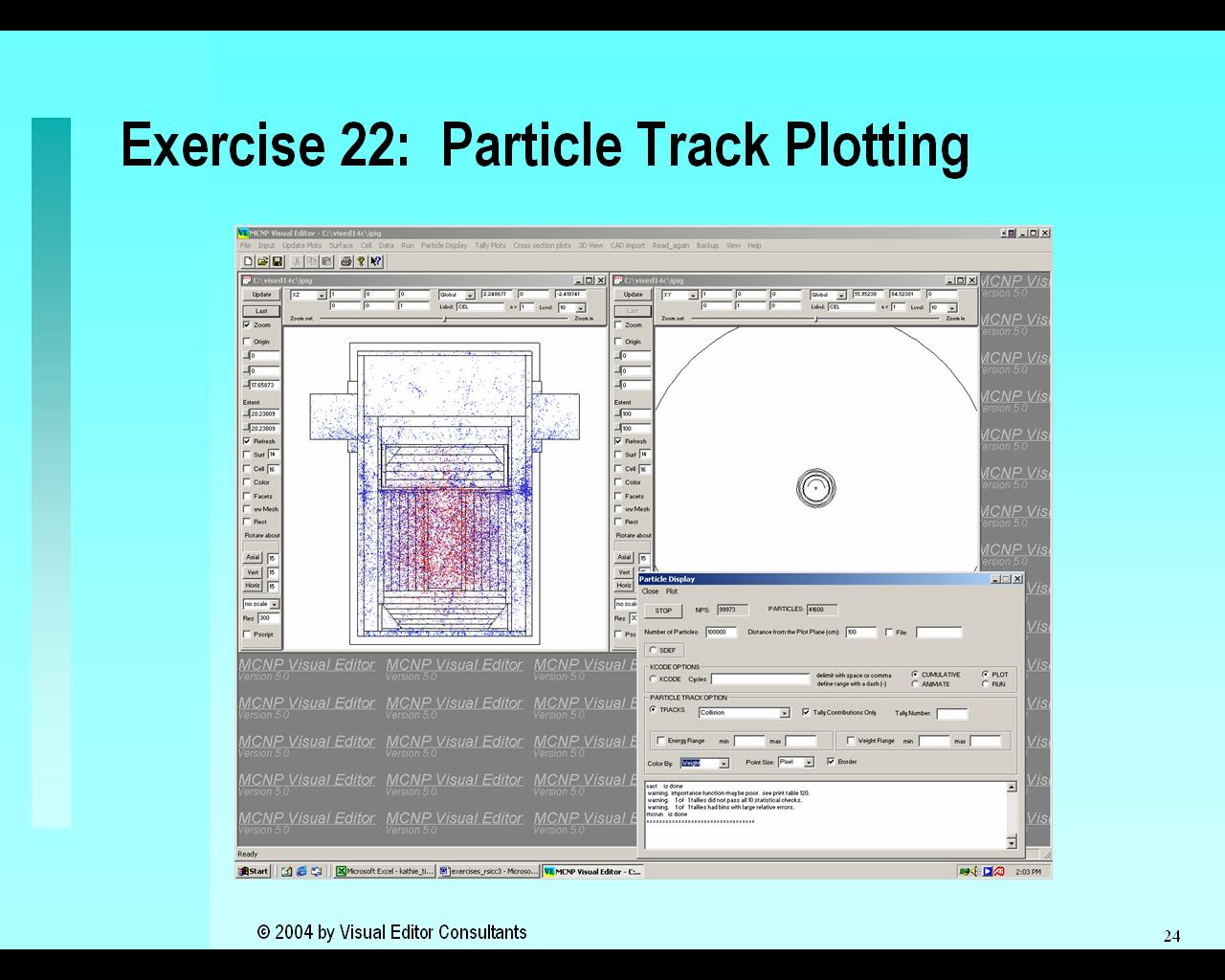
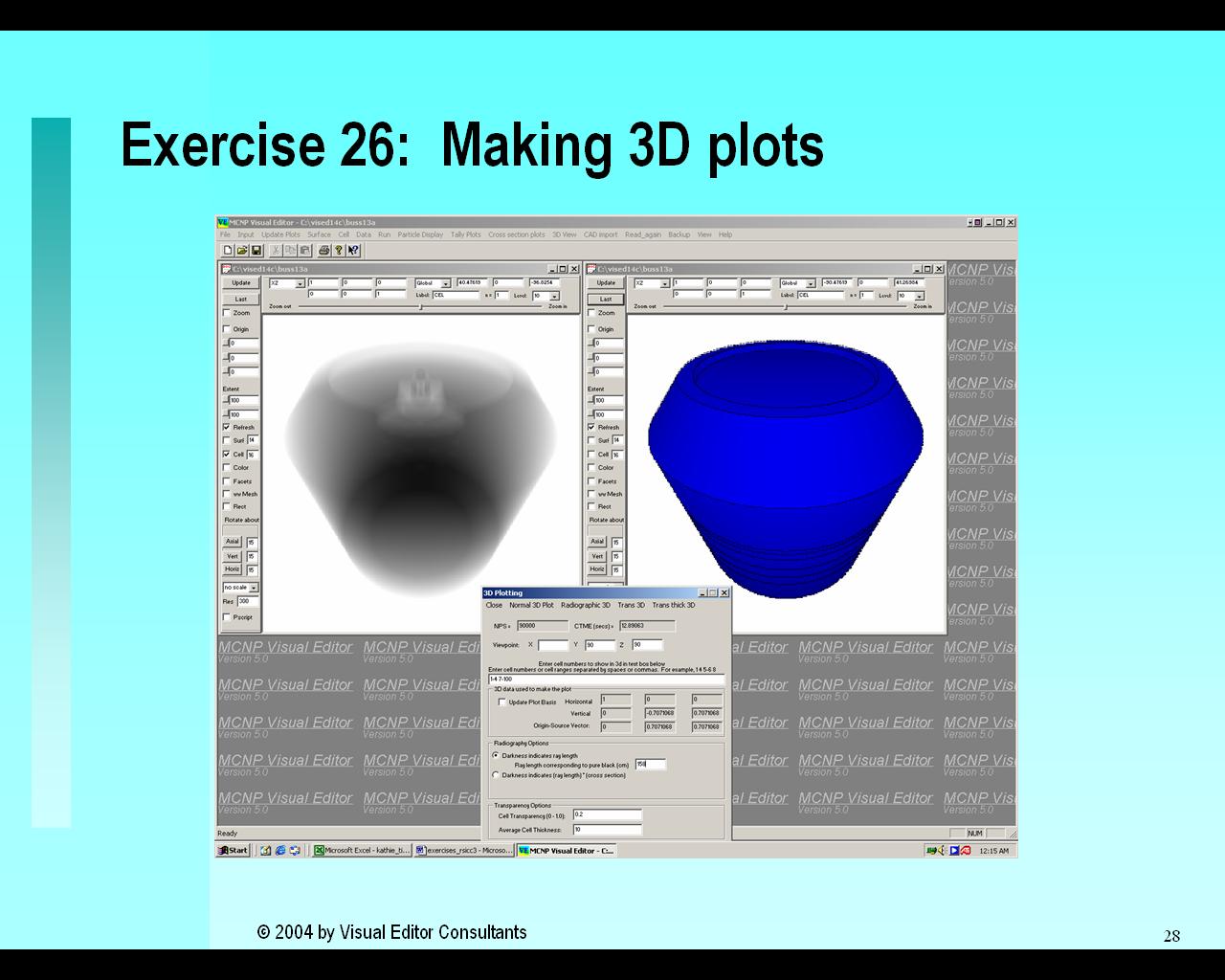
The fourth day teaches how to run MCNP, particle track plotting, plotting KCODE source generation points, various ways you can display your MCNP results using Microsoft Excel and other tools, tally plots, 3D plots, and the CAD to MCNP converter. Randy has developed a number of techniques for visualizing MCNP output data using Microsoft Excel. See the images below for examples. This class will include a brief overview of the technique. For more detailed information, see the Ouput Visualization class taught by Visual Editor Consultants. The Visual Editor has two different methods for displaying MCNP geometries in 3D; either by the 3D Ray Tracing method or as a dynamic 3D object that can be rotated with the mouse. The user will have the opportunity to make tally plots and experiment with various display options. Students will be introduced to the Visual Editor's powerful CAD converter which enables the user (or CAD operator) to draw a geometry in a CAD package and then import it into the Visual Editor.
MCNP Topics Covered in Day 4:
|
|
Tallies |
| Running MCNP and review of output files |
Visual Editor Topics Covered in Day 4:
The fifth day allows users to pursue some advance topics and to get help with geometries they are currently building. Students are encouraged to bring input files from their work.
|
Website maintained by
Alysia Schwarz
(Last Updated:
06/12/2006) | ||